 Image to Text OCR
Free · Online tool and Chrome extension · Runs on your device
Text out of any image.
Here, or in one right-click.
Drop an image or a PDF on this page and copy the text, or the table as spreadsheet cells. With the Chrome extension, right-click any picture on the web and it is already in your clipboard. Nothing is uploaded anywhere.
Also for Microsoft Edge
The OCR engine runs in your browser. No server, no account, no area to select.
Works right here, no install
Drop an image, get the text.
Drop an image or a PDF anywhere on this page, paste a screenshot with Ctrl V, or pick a file.
Nothing is uploaded: the engine loads into this page and reads the file on your device.
That's three reads today on this page.
The extension has no daily limit and works with one right-click on any web page, no file needed. It is free.
Add to ChromeOn web pages the extension does this with one right-click, no file needed. Add to Chrome
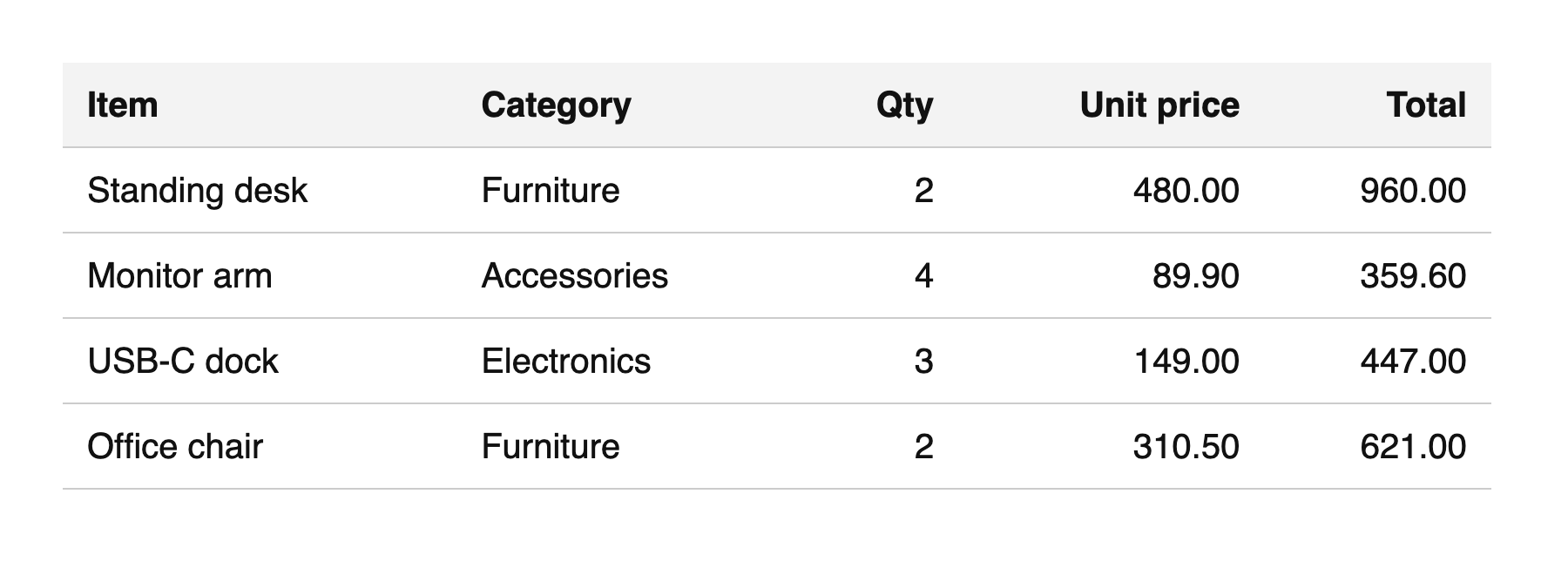
Right-click the picture, choose Copy as table, paste into a sheet. That's the whole product.
How it works
Pictures of text are still text.
A screenshot in a chat, a table in a report, a scanned quote. Three ways in, no OCR website, no upload, no retyping.
Right-click an image
On any web page. Two items in the menu: Copy text and Copy as table. No area to select, no window to open.
Paste a screenshot
For what you can't right-click: a video, a PDF viewer, a desktop app. Take a screenshot to the clipboard, click the icon, press Ctrl V.
Drop a file or PDF
Click the icon, or press ⌥ ⇧ O, and drop an image or a PDF in. PDFs with a text layer keep their tables.
It reads on your device: the engine and the English and German models live inside the extension. Text pastes as text. Tables paste as cells into Sheets, Excel and Numbers, and as a table into Docs or mail. If the text can't be read, it says so instead of copying garbage.
What people use it for
Image to text, in every form it arrives.
Image to Text OCR is a free image to text converter by Gallera Studio: an online tool on this page and a Chrome extension. It copies the text of an image, or the table in it as spreadsheet cells, and reads PDFs. Six everyday cases, each with a short guide and the tool on the page.
Copy text from an image
Any picture with text on a web page: right-click, Copy text, paste.
GuideScreenshot to text
Screenshot to the clipboard, paste into the popup, copy the text. No file saved.
GuideImage to Excel or Google Sheets
Copy as table: rows and columns land as cells, numbers included.
GuidePDF to text and tables
Drop a PDF into the popup. The text layer is read page by page, without uploading.
GuideExtract text from an image
A JPG, PNG or screenshot file: drop it on the page, copy the text.
GuideImage to table
A picture of a table becomes a real table in Docs, Word, Notion or an email.
GuideCompared with a typical OCR website
| Image to Text OCR | Typical OCR website | |
|---|---|---|
| Steps from image to text | One right-click | Open the site, upload, wait, copy |
| Your image is uploaded | No, it stays on your device | Yes, to their server |
| Account or sign-up | No | Usually, after a few files |
| Monthly page limit | None | Often |
| Tables as spreadsheet cells | Yes, Copy as table | Rarely |
| Works offline | Yes | No |
- Version
- 1.0.0
- Requires
- Google Chrome 116 or newer
- Languages read
- English, German
- Permissions
- 6, no access to websites
- Package size
- about 9 MB, engine and models included
- Price
- Free, no paid tier
- Publisher
- Gallera Studio
- Without installing
- Yes, the tool on this page
- Last updated
- October 2, 2026
Privacy
Your images stay yours.
Most image-to-text tools upload your picture to a server. This one doesn't have a server. The only network request is fetching the image you clicked, from where it already is.
Read the privacy policy- No upload. Recognition runs in your browser, on your machine.
- No access to websites. Six permissions, none of them "read your data on all sites".
- No account, no tracking. No sign-up, no analytics, no ads. Uninstall, and it's gone.
Questions
Frequently asked.
Can I use it without installing anything?
Yes. Drop an image or a PDF on this page, paste a screenshot with Ctrl+V or pick a file: the same engine runs in your browser and nothing is uploaded. The page reads up to three files a day; the Chrome extension has no limit and adds the right-click on any web page.
Does it copy tables?
Yes. Choose Copy as table and the rows and columns are recognised. Paste into Google Sheets, Excel or Numbers and each value lands in its own cell; paste into Docs or an email and you get a real table.
Which languages are supported?
English and German models are bundled. English also handles numbers and most Latin-script text. Switch the language in the settings; the default follows your browser language.
Does it work with PDFs?
Yes. Click the icon and drop a PDF. Pages with a text layer are read directly, with tables intact. A scanned PDF without a text layer is reported as such; take a screenshot of the page and drop that instead.
What about photos of documents?
Screenshots, scans and straight photos of printed text work well. Photos taken at an angle, in poor light or of handwriting may come out with mistakes; check the result before you rely on it.
Where do my images go?
Nowhere. The recognition engine, the language models and the PDF reader are inside the extension. The only network request is fetching the image you right-clicked, from its own address. There is no server, no account and no analytics.
Is it free?
Yes. The extension has no account, no limits and no paid tier. The tool on this page is free for up to three files a day.
Does it work in Microsoft Edge?
Yes. The same extension is listed in Microsoft Edge Add-ons, with the right-click, the popup and the tables. Open this page in Edge and the install button leads there.